Discord Guide
How to get started on Discord and navigate the Arrow community server.

Arrow runs on Discord. This covers the basics of the platform and a map of our server.
If you've never used Discord before, start at the top. If you already have an account, jump to Join the Arrow Server.
What is Discord?
Discord is a chat platform built around servers. Each server has channels — topic-specific rooms for text or voice.
| Term | What it means |
|---|---|
| Server | A community space with its own channels, roles, and members |
| Channel | A room inside a server (#general, #engineering-forum, etc.) |
| Role | A label assigned to members that controls which channels they can see |
| DM | Direct message — private conversation between two or more people |
| Voice channel | A room where you join to speak, and optionally share your screen |
| Thread | A sub-conversation attached to a specific message, useful for follow-ups |
| @mention | Tagging someone to notify them (e.g. @username) |
Discord runs in a browser, desktop app, or on mobile. The desktop app works best.
Create an account
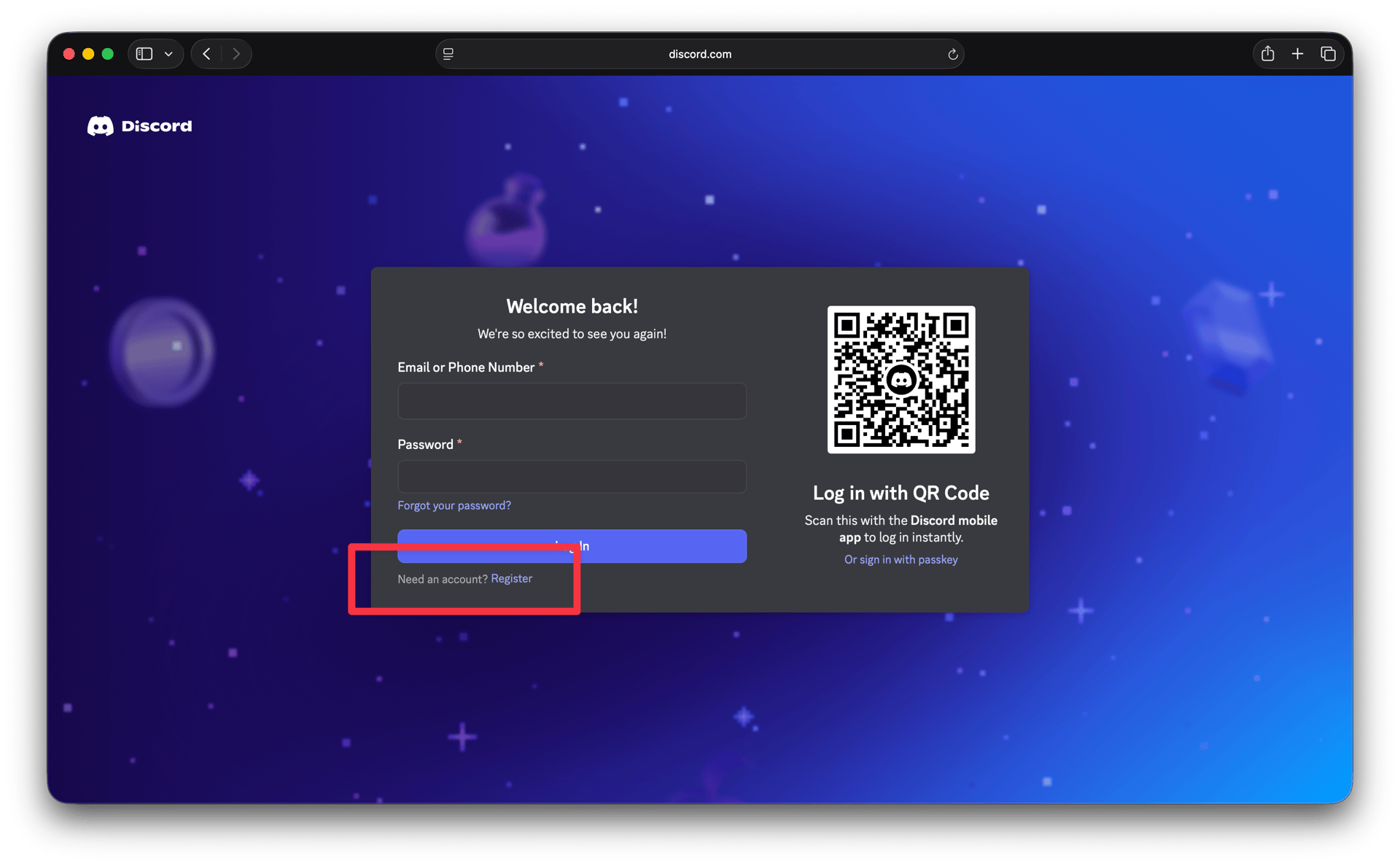
Visit discord.com and click Open Discord in your browser, or download the desktop app.
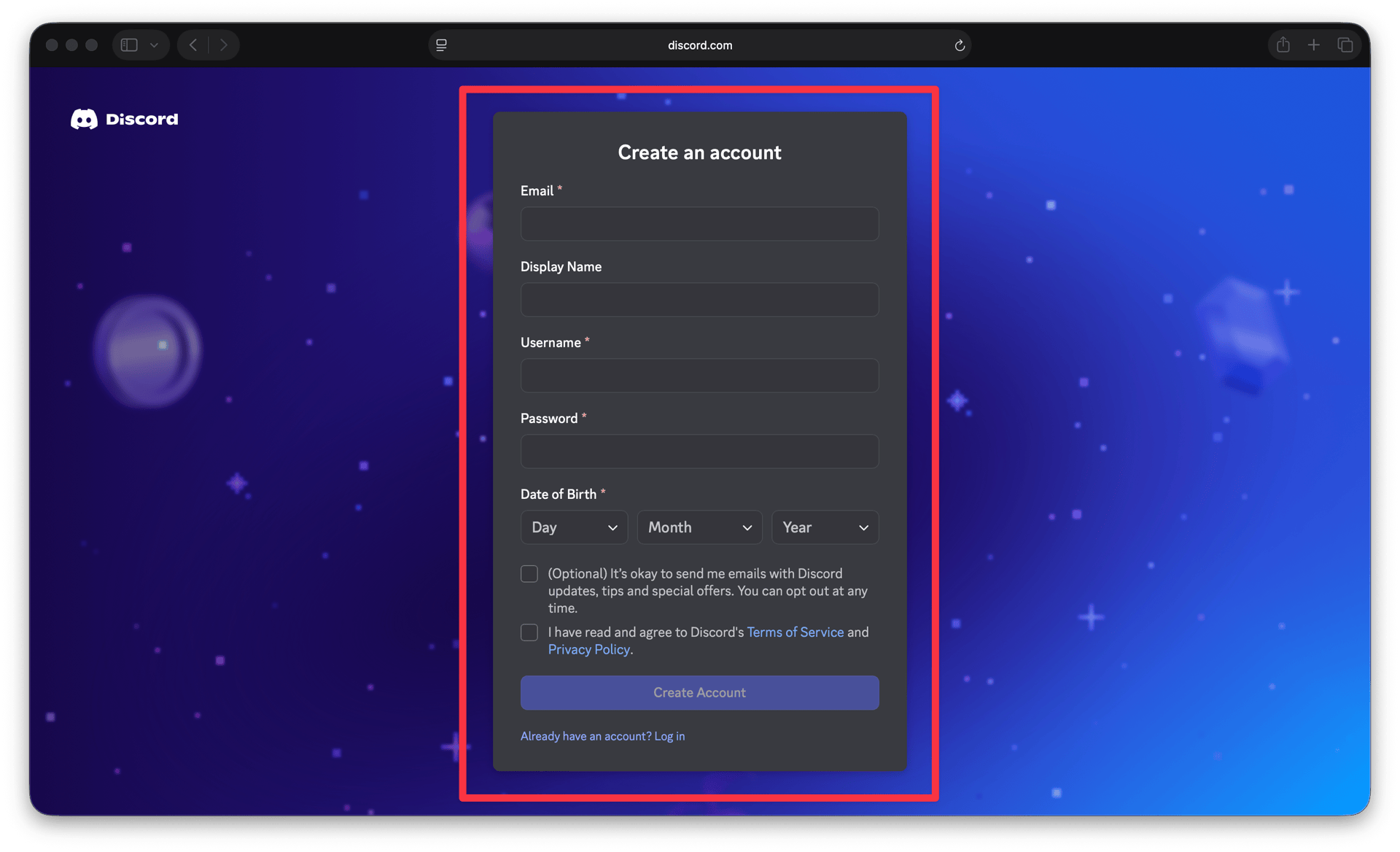
Click Register and fill in your email, username, and password. Discord will ask for your date of birth — you need to be 13+.
Check your inbox for a verification email and click the link. You can't send messages until this is done.
Adding a photo and a short bio helps Arrow members know who you are. Go to User Settings → Profiles.
Join the Arrow server
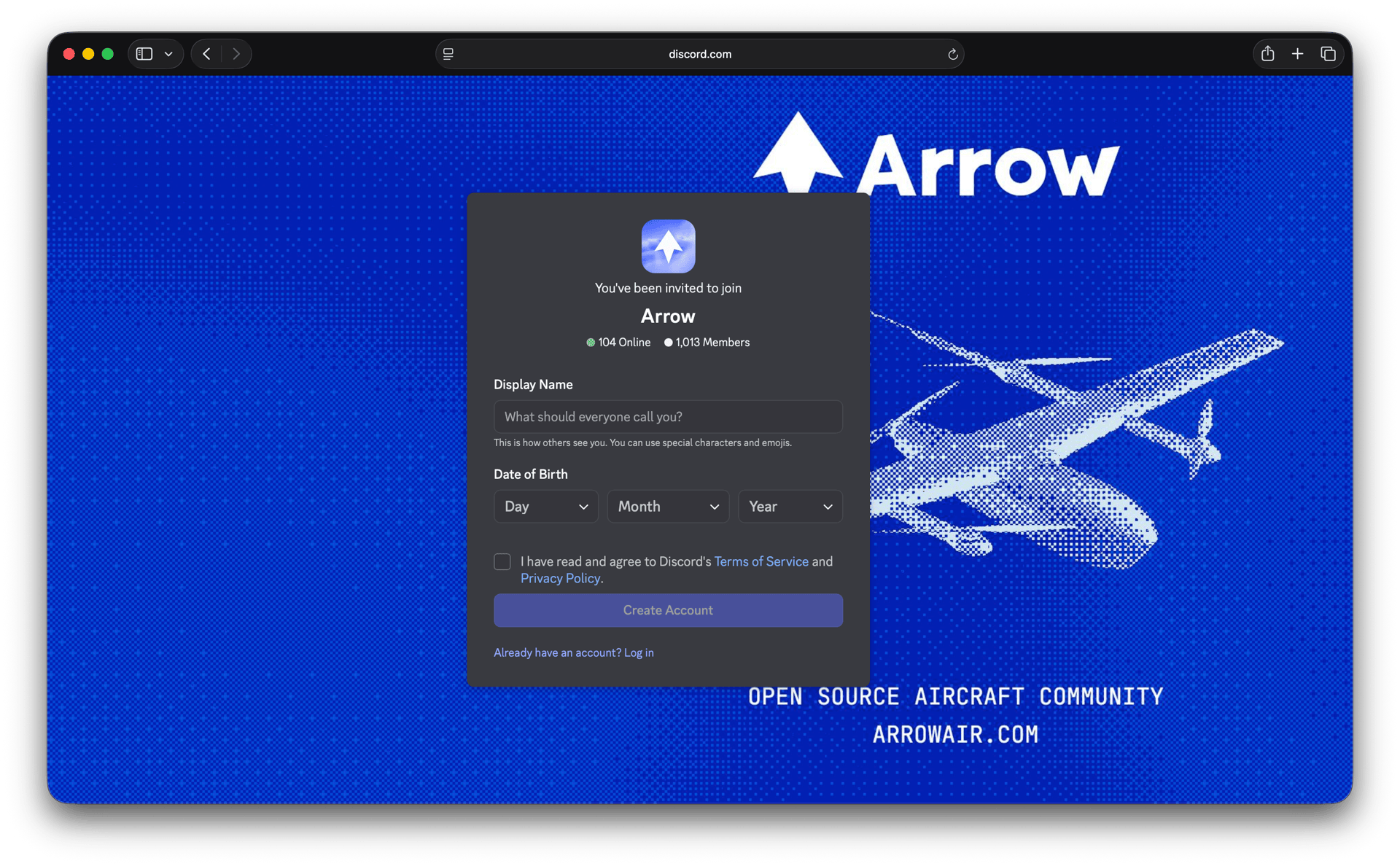
Open the Arrow Discord invite. If you're already logged in, you'll see a preview of the server before joining.
Hit Accept Invite. You'll land in the server with the channel list on the left.
Server onboarding
When you first join, you'll only see a few channels. To unlock the rest, you need to go through onboarding.
Go to welcome-call in the Start Here section and follow the instructions to schedule a call. It's a short intro conversation with someone from the Arrow community.
After your call, head to choose-a-role and pick which pod you want access to. Your role controls which project channels appear in your sidebar.


Channel guide
Start Here
| Channel | Purpose |
|---|---|
| welcome-call | Complete onboarding here to unlock full server access |
| choose-a-role | Pick your pod after onboarding |
Community
| Channel | Purpose |
|---|---|
| #announcements | Official Arrow news — read-only, low volume |
| #general | Main Arrow community discussion |
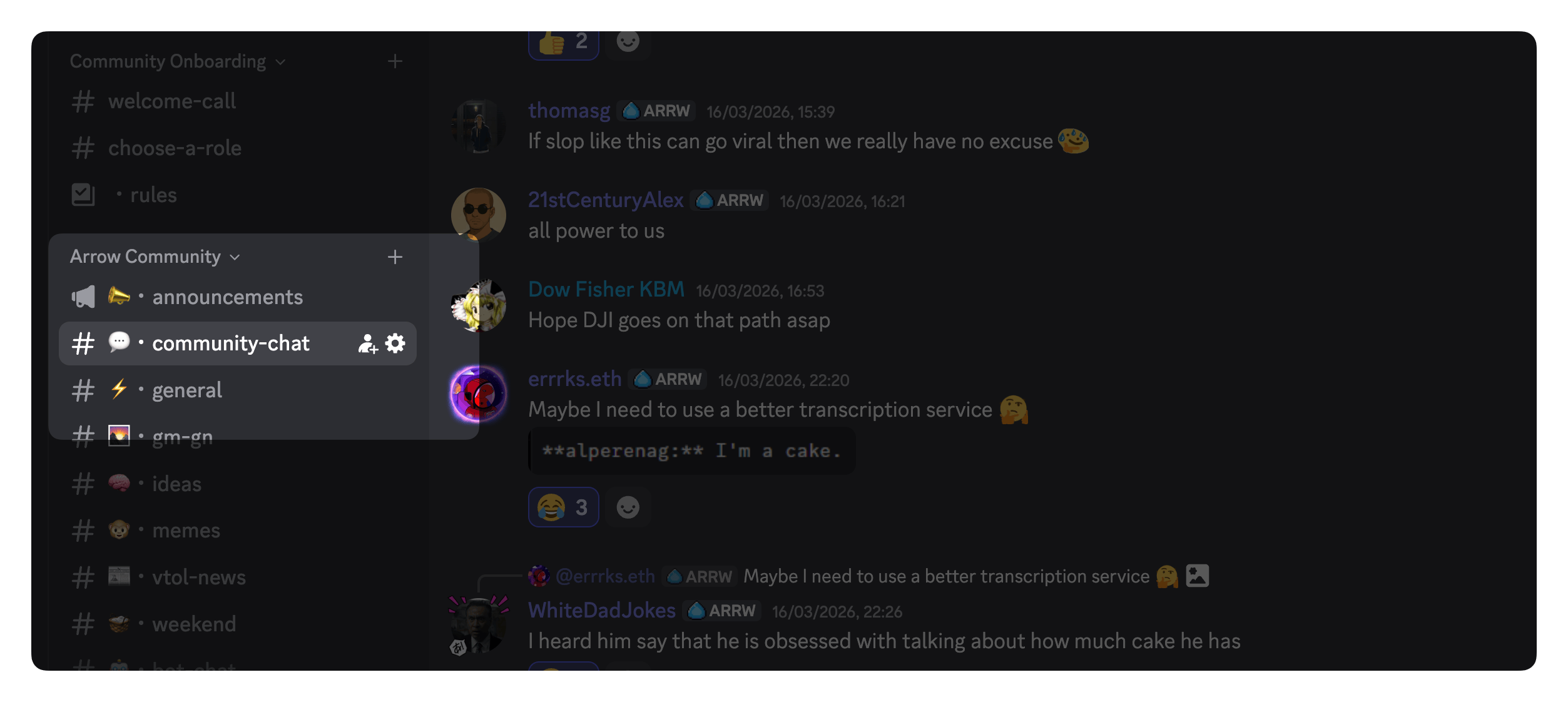
| #community-chat | Casual, anything-goes conversation |
| #gm-gn | Say good morning/night — helps the global team feel connected across time zones |
| #ideas | Pitch anything, no commitment needed |
| #vtol-news | Industry news shared by community members |
| #memes | You know what this is |
| #bot-chat | Chat with Arrow's AI agents (experimental) |
| #weekend | What are you up to outside of Arrow? |
| voice-chat | Main voice channel for community calls |
Project Quiver
| Channel | Purpose |
|---|---|
| #quiver-general | High-level Quiver platform discussion |
| #engineering-forum | Technical deep dives, tagged by topic (Electrical, Avionics, Structure…) |
| #daily-checkin | Contributors post what they're working on |
| #meetings-and-notes | Summaries from Quiver calls |
| useful-links | Pinned reference links for contributors |
| Quiver Chat | Voice for engineering calls |
| Quiver Flight Test | Stage channel for live flight sessions |
#engineering-forum uses Discord's Forum channel format — posts are organized by topic tags. Search before opening a new one; your question probably has a thread.
Growth & Operations
| Channel | Purpose |
|---|---|
| #growth-general | Community growth and outreach discussion |
| #governance-general | DAO governance chat |
| #governance-forum | Formal proposals and AIP drafts |
| #grants-and-bounties | Active bounties and grant announcements — paid work lives here |
Project Flight Tracking
| Channel | Purpose |
|---|---|
| #flight-tracking-public | Community updates on the flight tracking platform |
| #about-flight-tracking | What the project is and how to get involved |
How Arrow uses Discord
Arrow is async-first. Don't wait on replies — people are spread across time zones and have work outside Arrow. Post your message and move on.
You don't need permission to contribute. If you see something to work on, start and say what you're doing.
Paid work is in #grants-and-bounties. Governance proposals get drafted on the DAO Forum first, then come to Discord when they're ready for discussion.
Meet Vector
Vector is an AI community member built specifically for Arrow. You'll find it in #bot-chat — just open a thread and ask anything.
Vector can help you:
- Answer questions about Arrow, Quiver, the DAO, and how things work
- Track down information — meeting notes, GitHub activity, governance proposals, bounties
- Work through technical topics — flight logs, CAD, firmware, electronics, docs
- Summarize threads, calls, or GitHub discussions you missed
- Point you to the right channel, person, or resource
A few things to know: Vector isn't the official voice of Arrow, it's a community member like you. It can make mistakes, so double-check anything that matters. It doesn't have access to private channels.
No question is too basic. Just talk to it.
Tips
Mute sections you're not in. If a project isn't your focus yet, mute that whole category. The channels stay visible but the unread badge disappears.
Use threads when a conversation runs long. Hover a message and click the thread icon. Much easier to follow than a 40-reply wall in #general.
Voice channels are open. Click to join, leave when you're done. No invite needed.
Ctrl+K jumps to any channel or DM. Ctrl+F searches within the current channel.