Images
A reference for embedding images and video in Arrow docs. Most things work with standard markdown — no special syntax needed.
Full width
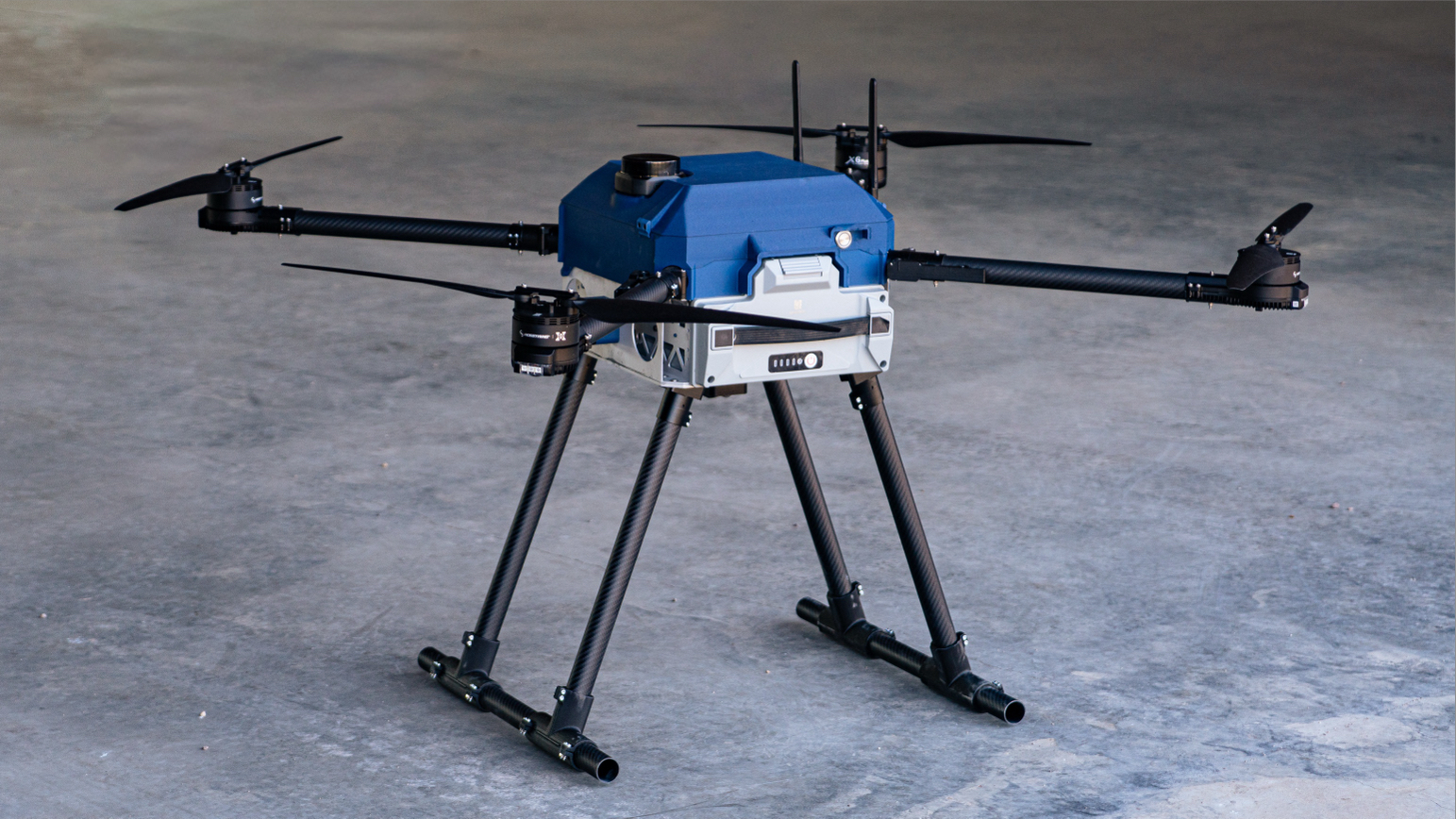
Drop an image into your doc with standard markdown. It fills the content column automatically.

Sized images
Need a smaller image? Switch to an <img> tag and set width as a percentage or in pixels. Your file extension can be .md or .mdx — both support inline HTML.
<!-- 25% wide -->
<img src="/img/your-image.png" width="25%" />

<!-- 50% wide -->
<img src="/img/your-image.png" width="50%" />

<!-- 75% wide -->
<img src="/img/your-image.png" width="75%" />

<!-- Fixed pixel width -->
<img src="/img/your-image.png" width="320" />
With caption
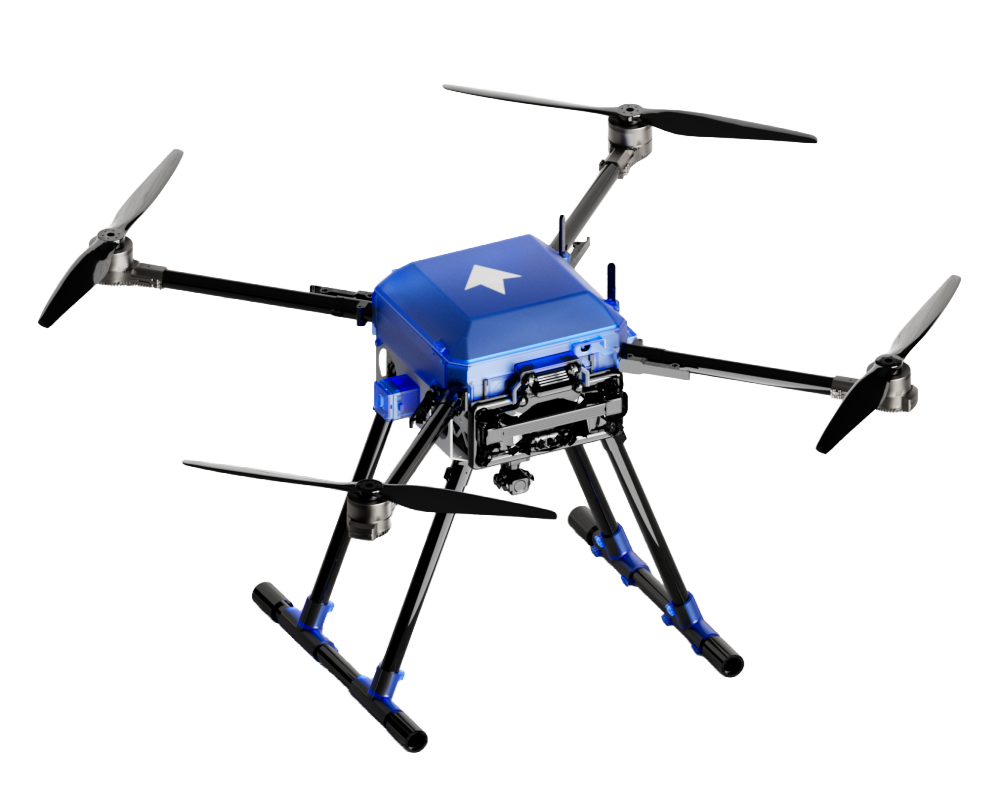
Wrap your image in a <figure> to add a caption below it.
<figure>
  <img src="/img/your-image.jpg" alt="A description" />
  <figcaption>Your caption goes here</figcaption>
</figure>
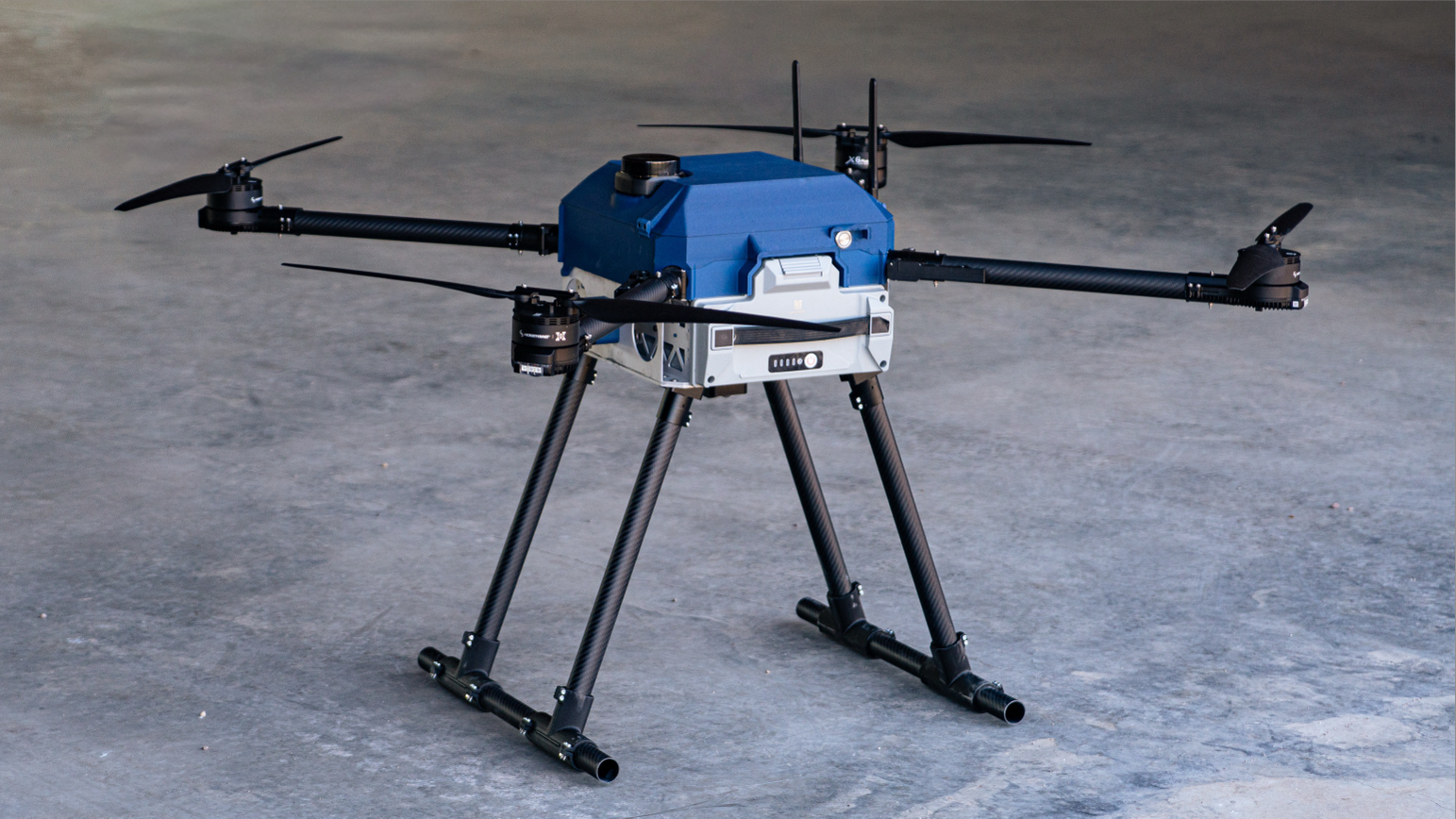
Works with sized images too:
<figure>
  <img src="/img/your-image.png" width="50%" alt="A description" />
  <figcaption>Your caption goes here</figcaption>
</figure>
Borderless
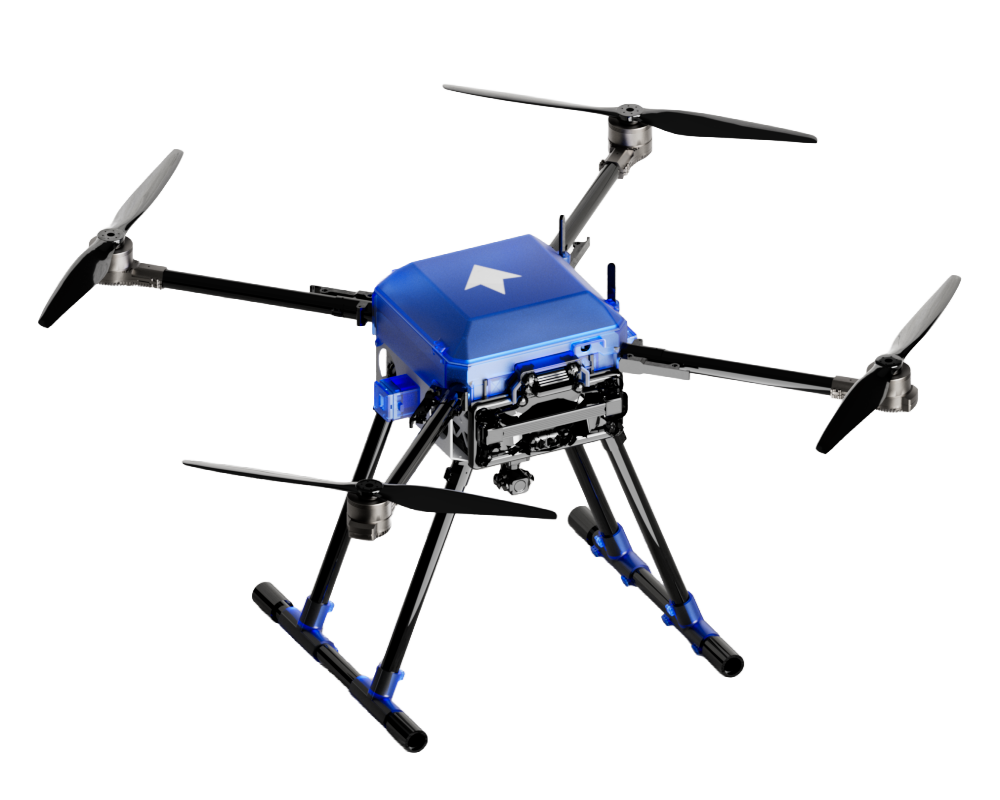
By default, images get a border and shadow to make them stand out from the page. To remove both, add "borderless" as the image title — no extra syntax needed.
<!-- With border (default) -->

<!-- Without border -->

With border (default):
Without border:
Works on full-width images too:
Float left / right
Wrap text around an image by floating it. Add a <div style={{clear: 'both'}} /> after your paragraph to stop the wrap.
<img src="/img/your-image.png" width="240" style={{float: 'left', marginRight: '1.5rem', marginBottom: '1rem'}} />

Your paragraph text wraps around the image here. Keep writing and it will
flow naturally until the image runs out of height.

<div style={{clear: 'both'}} />
Lorem ipsum dolor sit amet, consectetur adipiscing elit. Sed do eiusmod tempor incididunt ut labore et dolore magna aliqua. Ut enim ad minim veniam, quis nostrud exercitation ullamco laboris nisi ut aliquip ex ea commodo consequat. Duis aute irure dolor in reprehenderit in voluptate velit esse cillum dolore eu fugiat nulla pariatur.
<img src="/img/your-image.png" width="240" style={{float: 'right', marginLeft: '1.5rem', marginBottom: '1rem'}} />
Lorem ipsum dolor sit amet, consectetur adipiscing elit. Sed do eiusmod tempor incididunt ut labore et dolore magna aliqua. Ut enim ad minim veniam, quis nostrud exercitation ullamco laboris nisi ut aliquip ex ea commodo consequat. Duis aute irure dolor in reprehenderit in voluptate velit esse cillum dolore eu fugiat nulla pariatur.
Centered
<div style={{textAlign: 'center'}}>
  <img src="/img/your-image.png" width="50%" />
</div>
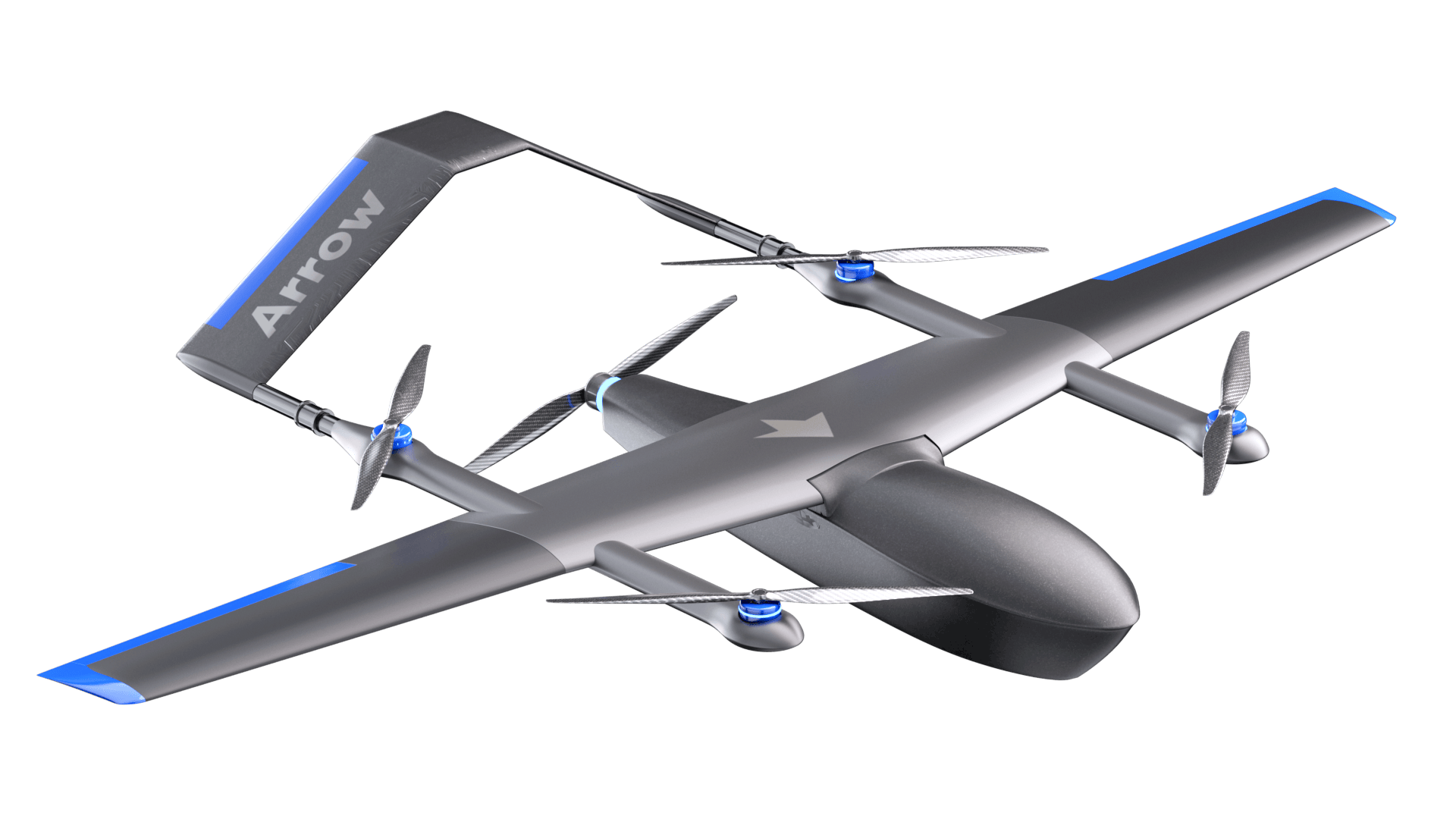
Side by side
Place two or three images next to each other using a grid. Adjust gridTemplateColumns to control the split.
<!-- 2-up: equal columns -->
<div style={{display: 'grid', gridTemplateColumns: '1fr 1fr', gap: '1rem'}}>
  <img src="/img/image-one.png" />
  <img src="/img/image-two.png" />
</div>

<!-- 3-up: equal columns -->
<div style={{display: 'grid', gridTemplateColumns: '1fr 1fr 1fr', gap: '1rem'}}>
  <img src="/img/image-one.png" />
  <img src="/img/image-two.png" />
  <img src="/img/image-three.png" />
</div>

<!-- Unequal split: 2/3 + 1/3 -->
<div style={{display: 'grid', gridTemplateColumns: '2fr 1fr', gap: '1rem'}}>
  <img src="/img/image-one.png" />
  <img src="/img/image-two.png" />
</div>




Inline with text
Embed a small icon or image inside a sentence.
Here is some text with an icon <img src="/img/your-icon.png" style={{display: 'inline', height: '1.5em', verticalAlign: 'middle'}} /> right in the middle.
Here is some text with an icon  right in the middle.
Dark / light mode
Use ThemedImage when you need a different image for dark and light mode — useful for diagrams, logos, or anything with a background. Add the import at the top of your .mdx file.
import ThemedImage from '@theme/ThemedImage';

<ThemedImage
  alt="Arrow wordmark"
  sources={{
    light: '/img/your-image-light.svg',
    dark: '/img/your-image-dark.svg',
  }}
/>


Hero / cover image
A wide, cropped image for the top of a post or section. Uses object-fit: cover to fill the frame regardless of the source image's dimensions.
<div style={{width: '100%', aspectRatio: '21/9', overflow: 'hidden'}}>
  <img src="/img/your-image.jpg" style={{width: '100%', height: '100%', objectFit: 'cover', display: 'block'}} />
</div>
Hero with text overlay
Add a title over a cover image — useful for engineering reports or blog posts.
<div style={{position: 'relative', width: '100%', aspectRatio: '21/9', overflow: 'hidden'}}>
  <img src="/img/your-image.jpg" style={{width: '100%', height: '100%', objectFit: 'cover', display: 'block'}} />
  <div style={{position: 'absolute', inset: 0, background: 'linear-gradient(to top, rgba(0,0,0,0.7) 0%, rgba(0,0,0,0.1) 60%)', display: 'flex', alignItems: 'flex-end', padding: '2rem'}}>
    <div>
      <p style={{color: 'rgba(255,255,255,0.7)', margin: '0 0 0.25rem', fontSize: '0.85rem', textTransform: 'uppercase', letterSpacing: '0.08em'}}>Project Update</p>
      <h2 style={{color: '#fff', margin: 0, fontSize: '1.75rem'}}>Your Title Here</h2>
    </div>
  </div>
</div>
Author bio
Add an author bio at the top or bottom of a post. Photo sizes: avatar__photo--sm, avatar__photo--lg, avatar__photo--xl.
<div className="avatar">
  <img className="avatar__photo avatar__photo--lg" src="/img/your-photo.png" alt="Your name" />
  <div className="avatar__intro">
    <div className="avatar__name">Your Name</div>
    <small className="avatar__subtitle">Your role · Team</small>
  </div>
</div>

Video — YouTube embed
Paste a YouTube video into your doc. The wrapper div keeps it responsive at 16:9.
<div style={{position: 'relative', paddingBottom: '56.25%', height: 0, overflow: 'hidden'}}>
  <iframe
    style={{position: 'absolute', top: 0, left: 0, width: '100%', height: '100%', border: 0}}
    src="https://www.youtube.com/embed/YOUR_VIDEO_ID"
    title="Your video title"
    allow="accelerometer; autoplay; clipboard-write; encrypted-media; gyroscope; picture-in-picture"
    allowFullScreen
  />
</div>
Replace YOUR_VIDEO_ID with the ID from the YouTube URL — e.g. youtube.com/watch?v=dQw4w9WgXcQ.
For a half-width embed, wrap it in a sized div:
<div style={{width: '50%'}}>
  <div style={{position: 'relative', paddingBottom: '56.25%', height: 0, overflow: 'hidden'}}>
    <iframe
      style={{position: 'absolute', top: 0, left: 0, width: '100%', height: '100%', border: 0}}
      src="https://www.youtube.com/embed/YOUR_VIDEO_ID"
      title="Your video title"
      allow="accelerometer; autoplay; clipboard-write; encrypted-media; gyroscope; picture-in-picture"
      allowFullScreen
    />
  </div>
</div>
Video — self-hosted
For MP4 files hosted in static/videos/, use the native <video> element.
<!-- With play controls -->
<video controls style={{width: '100%'}}>
  <source src="/videos/your-video.mp4" type="video/mp4" />
</video>

<!-- Autoplay loop — good for ambient / demo footage -->
<video autoPlay muted loop playsInline style={{width: '100%'}}>
  <source src="/videos/your-video.mp4" type="video/mp4" />
</video>
Demo image — screenshot frame
Use <DemoImage> to showcase screenshots, walkthroughs, or diagrams in a styled frame. Three color variants: blue (default), grey, teal. Single or two-column layout. Optional caption.
Single column
<DemoImage src="/img/your-screenshot.png" alt="App screenshot" />

<DemoImage color="grey" src="/img/your-screenshot.png" alt="App screenshot" />

<DemoImage color="teal" src="/img/your-screenshot.png" alt="App screenshot" />
Single column with caption
<DemoImage src="/img/your-screenshot.png" alt="App screenshot" caption="The main dashboard view" />
Two columns
<DemoImage cols={2}>
  <img src="/img/image-one.png" alt="Step 1" />
  <img src="/img/image-two.png" alt="Step 2" />
</DemoImage>
Two columns with caption
<DemoImage cols={2} caption="Before and after comparison">
  <img src="/img/image-one.png" alt="Before" />
  <img src="/img/image-two.png" alt="After" />
</DemoImage>